
SEO
Webflow SEO: How to Rank Your Website
Webflow makes a solid SEO strategy easy, with simple control over static and dynamic content. Here are 8 Webflow features that help your site rank.
What is Webflow?
Webflow is a no-code tool for building websites visually, without needing to write code. Its drag-and-drop approach lets you create attractive websites quickly that integrate easily with the tools you already use.
It also includes a CMS for managing dynamic content such as a blog, a portfolio or a product catalog.
One of the main differences between Webflow and similar tools, besides how easy it makes building your website, is the quality of the code it generates once the site is published.
Is it easy to get good SEO on Webflow?
To show up in search engines, you need more than a website with great design and content. You also need a solid SEO strategy that helps search engine crawlers (how Google Search works) understand what your site is about and index it correctly.
A good SEO strategy helps your website rank at the top of searches related to your content, which makes it more likely people will visit.
Webflow lets you apply SEO best practices easily to both static and dynamic content, and it improves other factors search engines take into account.
8 Webflow features that make ranking easier
Control over URLs, titles and descriptions
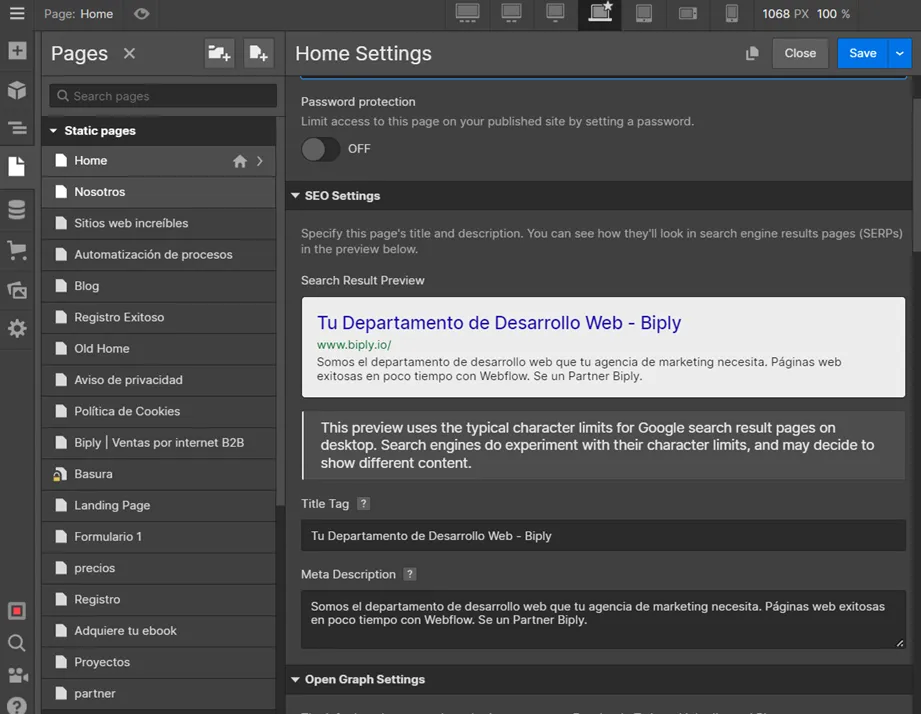
Webflow makes it easy to set the title and description of every page. In the Webflow Designer you can see all the pages on your site. Click one and a settings panel like the one below opens, where you can set both the title tag and the meta description and preview how the page will look in search results.
Then all that’s left is to publish, and your changes will appear when people search for something related to your page.
No plugins
Unlike other web development tools, Webflow doesn’t need plugins for your SEO strategy; you can do it all natively. That helps improve load times, avoids errors and security gaps and gives you clean code that’s easier to read when your site is indexed.
Image alt text
One SEO technique some people still overlook is describing the images on your website. Adding words that indicate what the image shows helps search engines understand your page.
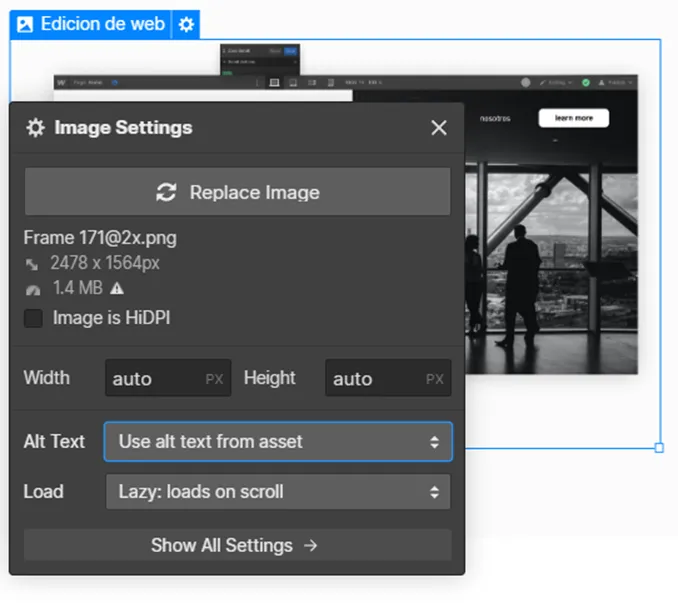
In Webflow, just click the image and then open its settings. A panel appears where, besides adjusting the image size and other options, you can mark whether the image is decorative or contains information that helps explain the page.
Only add the keywords you genuinely need to avoid any risk of a penalty.
301 redirects
Have you changed your site’s URLs? Worried about losing the rankings your pages have earned? You can redirect your old page to the new one so you don’t lose the rankings you worked hard for.
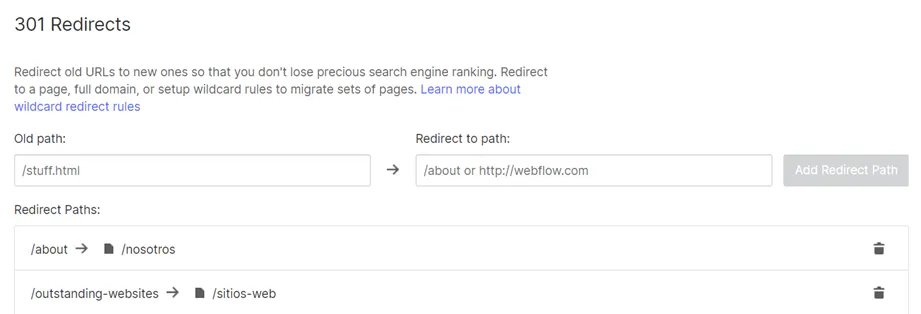
Webflow makes this easy and helps you avoid future problems. In your site settings, open the “Publishing” tab and find the 301 redirects section shown below. Add the old path and the new one, and you’re done. You keep your rankings, and crawlers understand the change more easily.
Automatic XML sitemap
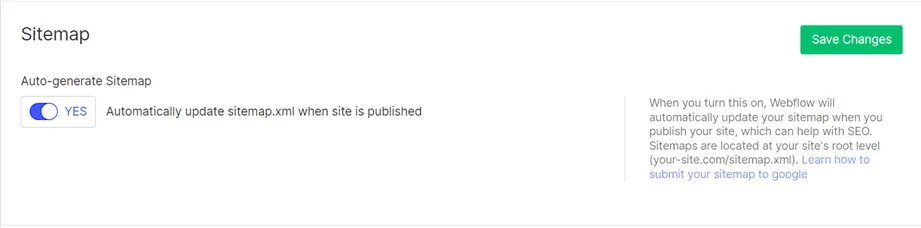
Webflow automatically creates and updates your website’s sitemap.
You can submit this sitemap to Google Search Console to make indexing easier, and even choose which pages should appear in search engines and which shouldn’t. To check your sitemap, just add /sitemap.xml to the end of your website’s URL.
Easy Google Analytics and Search Console integration
Analyzing your website and acting on the data from tools like Google Analytics and Google Search Console is vital for improving your rankings and attracting the right users.
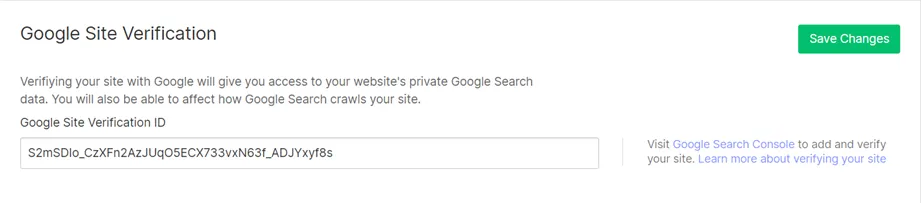
The first step toward appearing in search engines is verifying your website in Google Search Console so it can be indexed faster. Just add the verification ID, save your changes and publish.
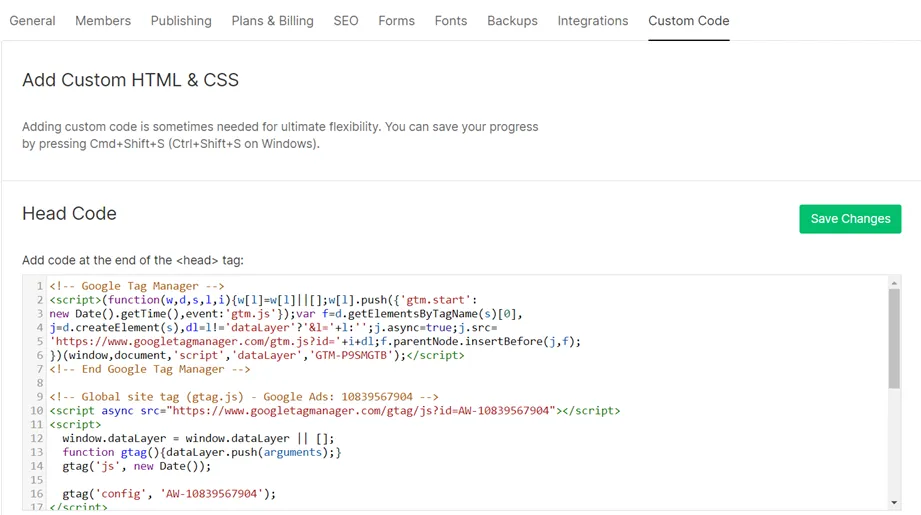
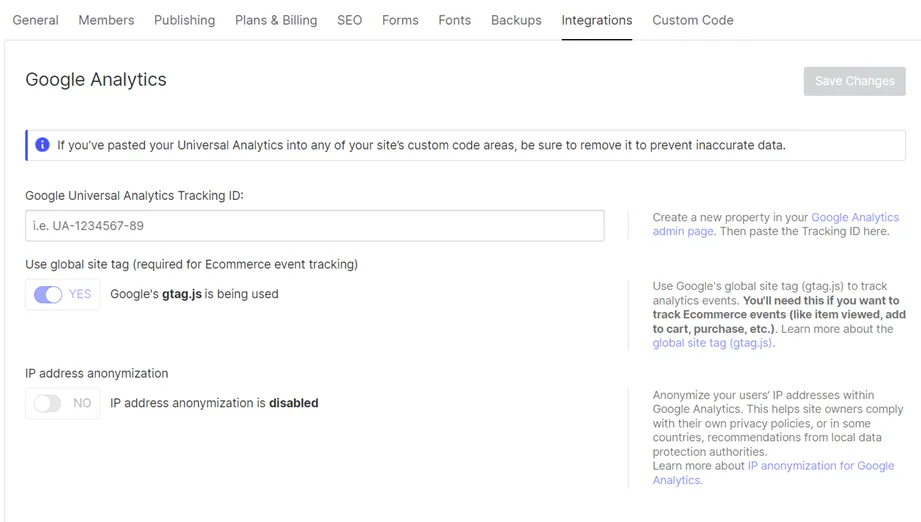
You should also integrate Google Analytics. Once you’ve created your account, add the tracking code to the head section under “Custom Code” and save. To track events on your website, you can also add your Google Analytics details in the Integrations section.
An Editor for publishing new entries
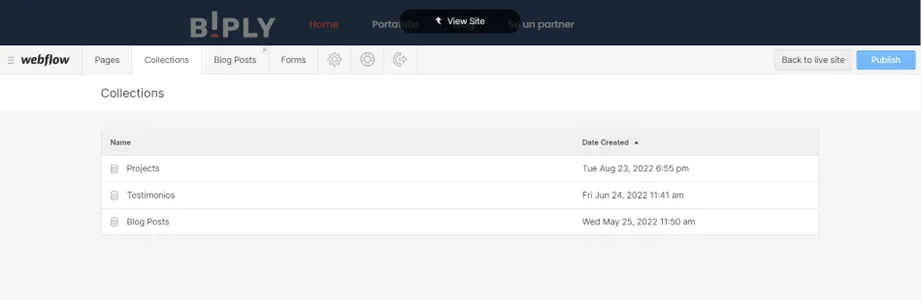
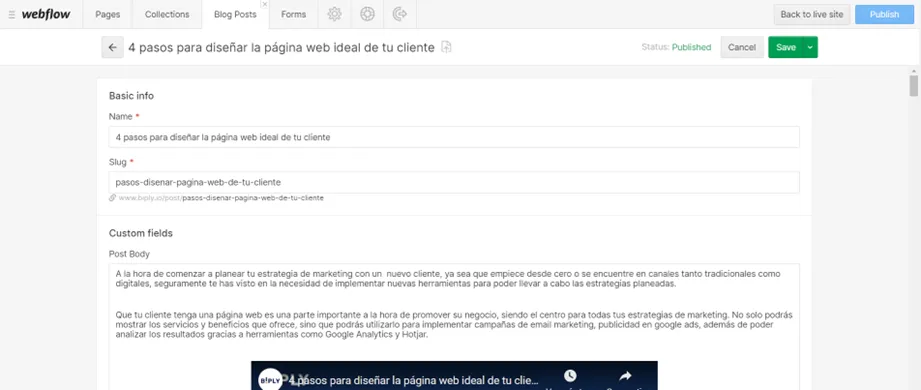
With the Webflow CMS you can create new Collections for your content, whether that’s a blog, reviews or your portfolio, and anyone on your team can add entries easily with Webflow’s Editor.
The Editor has an easy-to-understand interface and prevents accidental changes to the design.
From the Editor you can publish content that’s optimized for SEO: you can set headings (H1, H2, H3), the URL, internal and external links, alt text and more. The result is well-organized content that crawlers can index easily.
Fast loading
Thanks to many of the features above, among others Webflow offers, your website will load quickly. Page speed is one of the factors search engines consider when deciding where to rank you.
Building your site on Webflow can help you run a better SEO strategy. To take it further, we recommend connecting your website with tools like Semrush or Hotjar.
Keep reading
- SEOWhy Rank Your Business Website on Google? SEO ExplainedShowing up in the top results on Google can decide whether customers find you. Here's what SEO is and why it matters for your business.
- Industrial marketingIndustrial Marketing Challenges in a Digital WorldIndustrial marketing is evolving. Today, automated, search-optimized B2B websites are key to running campaigns that generate leads and win customers.
- Industrial marketingHow to Optimize the Sales Process in the Industrial SectorThe industrial sales process can be complex. The good news is that today's technology and strategies can make it more efficient, faster and more profitable.